
Salesforce Administrator Course
-
Introduction4 Topics
-
Get Started4 Topics
-
Configuration & Setup 20%21 Topics|1 Quiz
-
Configuration & Setup Introduction
-
Company Settings
-
User Interface & Key Features
-
Create a Business Development App
-
Create a Theme
-
User Interface Search Settings
-
Homepages
-
List Views
-
Intelligence View
-
Setup & Maintain Users
-
Delegated Administration & Login As Another User
-
Managing Access & Security in Salesforce
-
Organizational Security Controls
-
Organization Wide Defaults
-
Roles & Role Hierarchy
-
Sharing Rules
-
Manual Sharing
-
Sharing Hierarchy
-
Restriction Rules
-
Profiles, Permission Sets & Permission Set Groups
-
Folders
-
Configuration & Setup Introduction
-
Object Manager & Lightning App Builder 20%20 Topics|1 Quiz
-
Object Manager & Lightning App Builder Introduction
-
Standard Objects & Fields
-
Object Relationships
-
Extending Salesforce with Custom Objects & Fields
-
Custom Fields
-
Field Types
-
Field Dependencies
-
Field History Tracking
-
Field Visibility, Required Fields & Validation Rules
-
Deleting Fields
-
Page Layouts
-
Record Types
-
Business Processes, Path & Guidance
-
Create a Path
-
Compact Layouts
-
Global & Object-Specific Actions
-
Lightning App Builder Record Pages
-
Dynamic Forms
-
Dynamic Related Lists
-
Create an App
-
Object Manager & Lightning App Builder Introduction
-
Sales & Marketing Applications 12%15 Topics|1 Quiz
-
Sales & Marketing Applications Introduction
-
Opportunities & Sales Process Overview
-
Forecasting
-
Products & Price Books
-
Quotes
-
Orders
-
Lead Management & Lead Conversion
-
Lead Assignment Rules
-
Lead Auto-Response Rules
-
Web-to-Lead
-
Campaign Management
-
Sales Productivity Features
-
Home Page Assistant
-
Einstein Lead Scoring
-
Einstein Opportunity Scoring
-
Sales & Marketing Applications Introduction
-
Service & Support Applications 11%9 Topics|1 Quiz
-
Productivity & Collaboration 7%5 Topics|1 Quiz
-
Data & Analytics Management 14%18 Topics|1 Quiz
-
Data & Analytics Management Introduction
-
Creating Reports
-
Report Charts
-
Report Features
-
Report Types
-
Reporting Snapshots
-
Create Dashboards
-
Report & Dashboard Data Access
-
Report & Dashboard Folder Management
-
Exporting, Scheduling & Subscribing
-
Data Validation
-
Duplicate Management
-
Salesforce IDs & External IDs
-
Data Import Wizard
-
Data Loader
-
Data Import Wizard VS Data Loader
-
Mass Action Tools
-
Data Export & Backup
-
Data & Analytics Management Introduction
-
Workflow/Process Automation 16%9 Topics|1 Quiz
-
Prepare for Success1 Topic
-
Taking the Exam3 Topics
-
What's Next?3 Topics
Salesforce Mobile App

The Salesforce mobile app can be installed for free for both Android and iOS devices, via the Google Play Store and the App Store. The Salesforce mobile app enables users to access most Salesforce features on the move.
Salesforce Mobile App Setup
Let’s take a look at how you can set up a mobile app in Salesforce!
Salesforce Mobile App Quick Start
You can easily get ready for mobile using the Salesforce Mobile App QuickStart in setup.
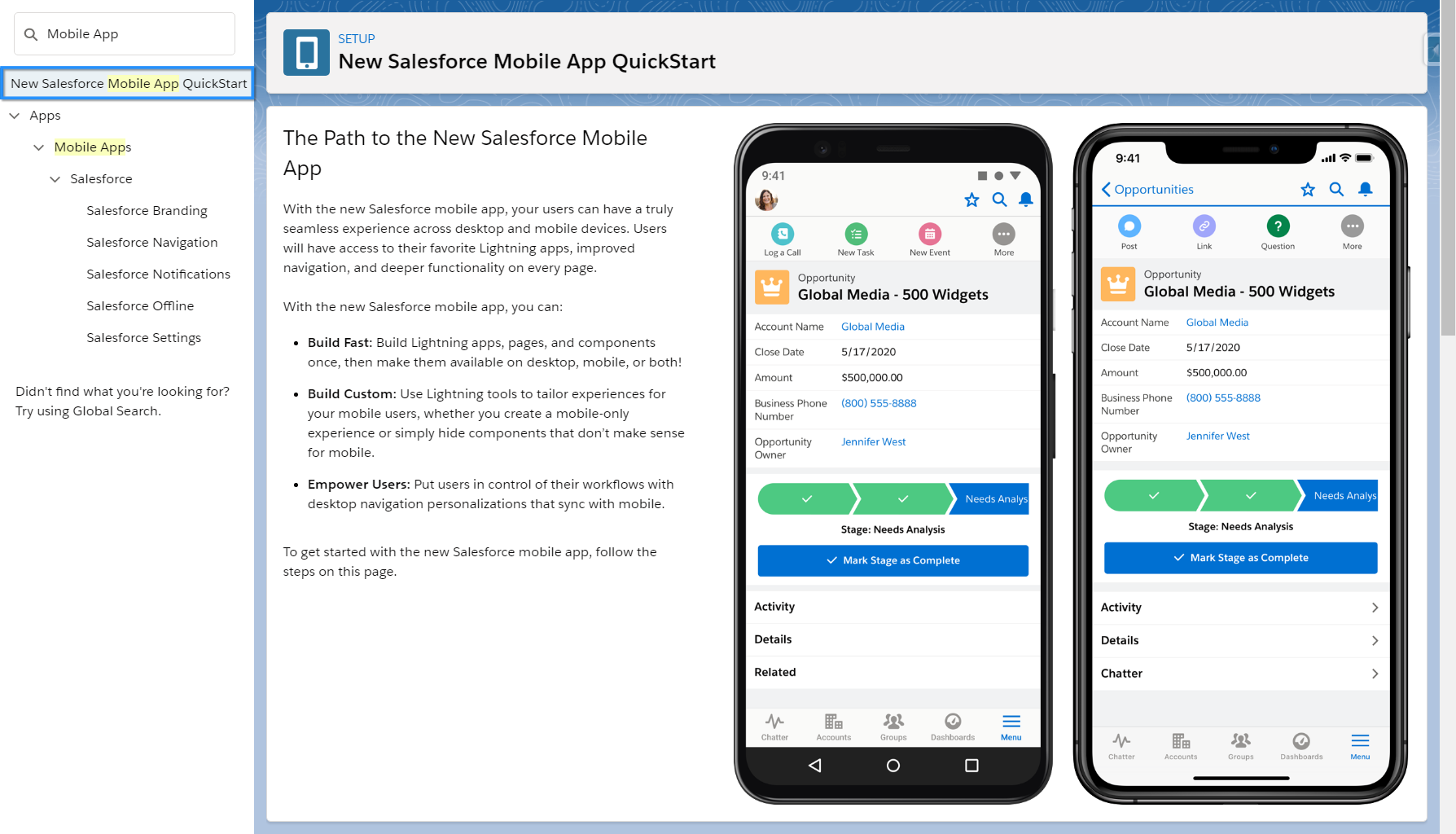
Let’s see it in action!
Salesforce Mobile App Navigation Menu
The mobile navigation will vary depending on what app a user has selected.
- Mobile Only App – An Admin can configure the ‘Mobile Only’ app in Setup > Apps > Mobile Apps > Salesforce > Salesforce Navigation. It is not compulsory to have a mobile only app, however it can make the transition to the mobile app easier. You can disable the mobile only app, but in this instance you must have an alternative Lighting app that users can access when using the mobile.
- Lightning Apps – Your users can access their favourite Lightning apps from within the mobile as long as the app has ‘phone’ as a supported form factor (you select this when creating or editing an app).
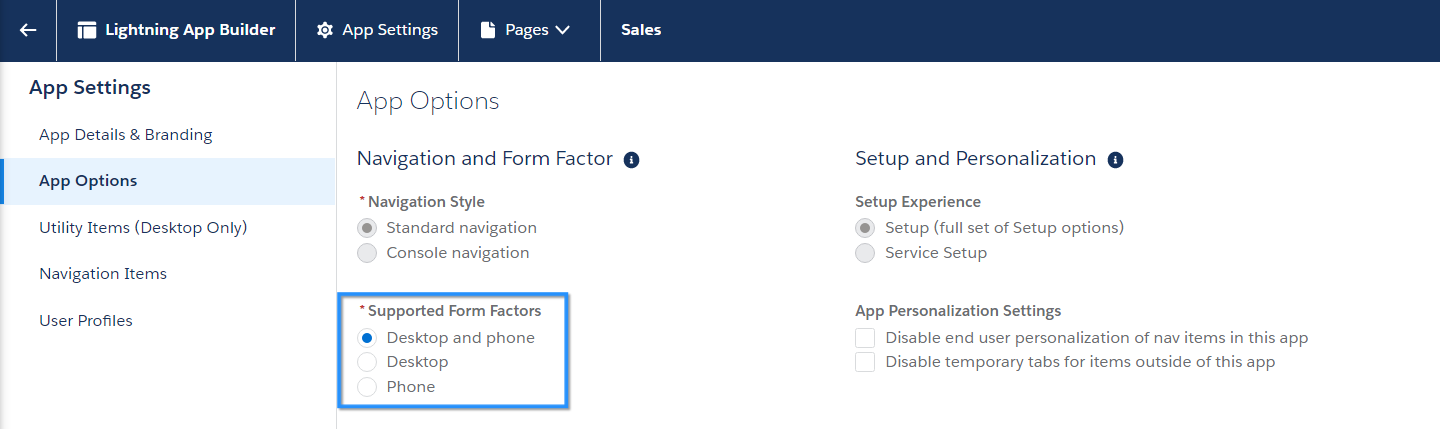
Once an app is selected, the navigation bar will reflect the navigation items set during the app setup. A user also has the option to edit the order of the navigation items.

Salesforce Mobile App Record Pages
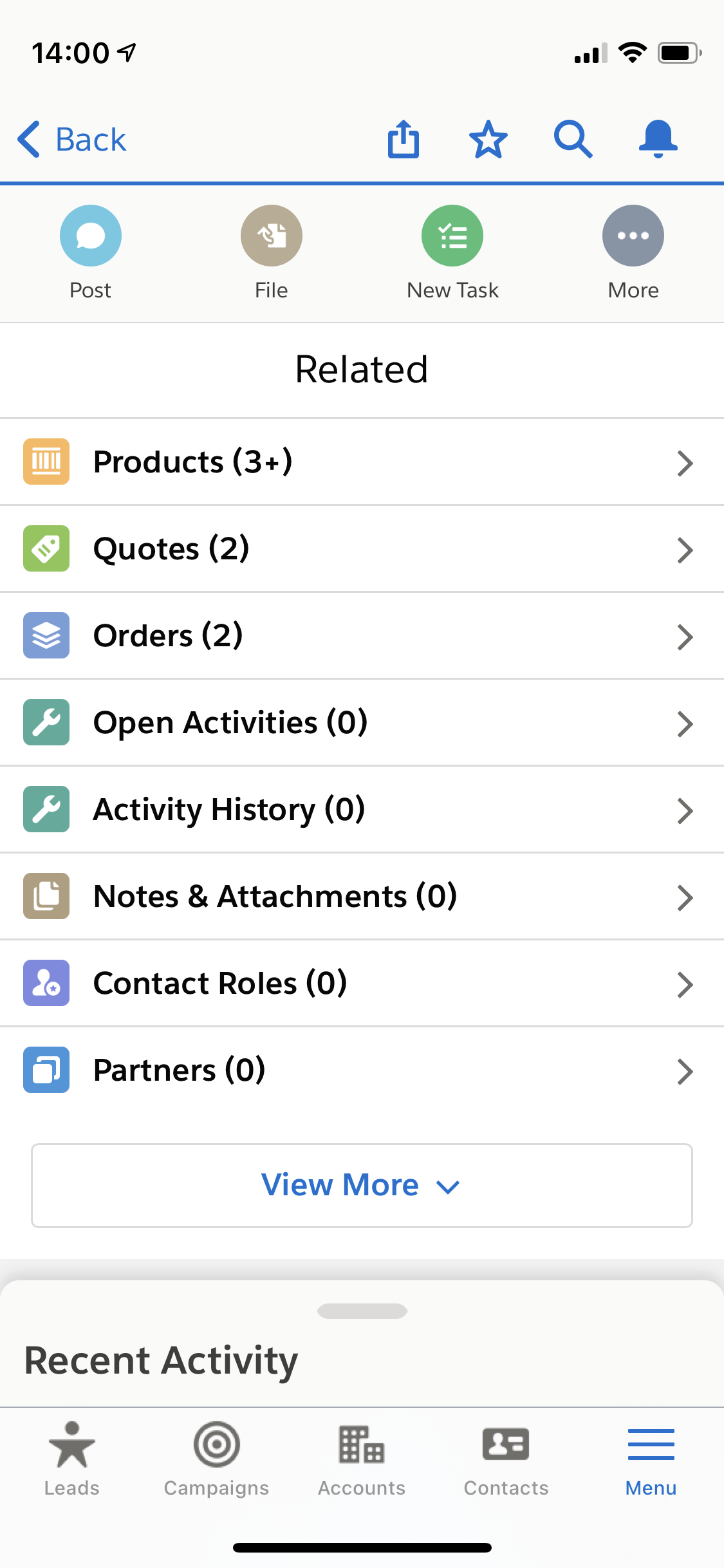
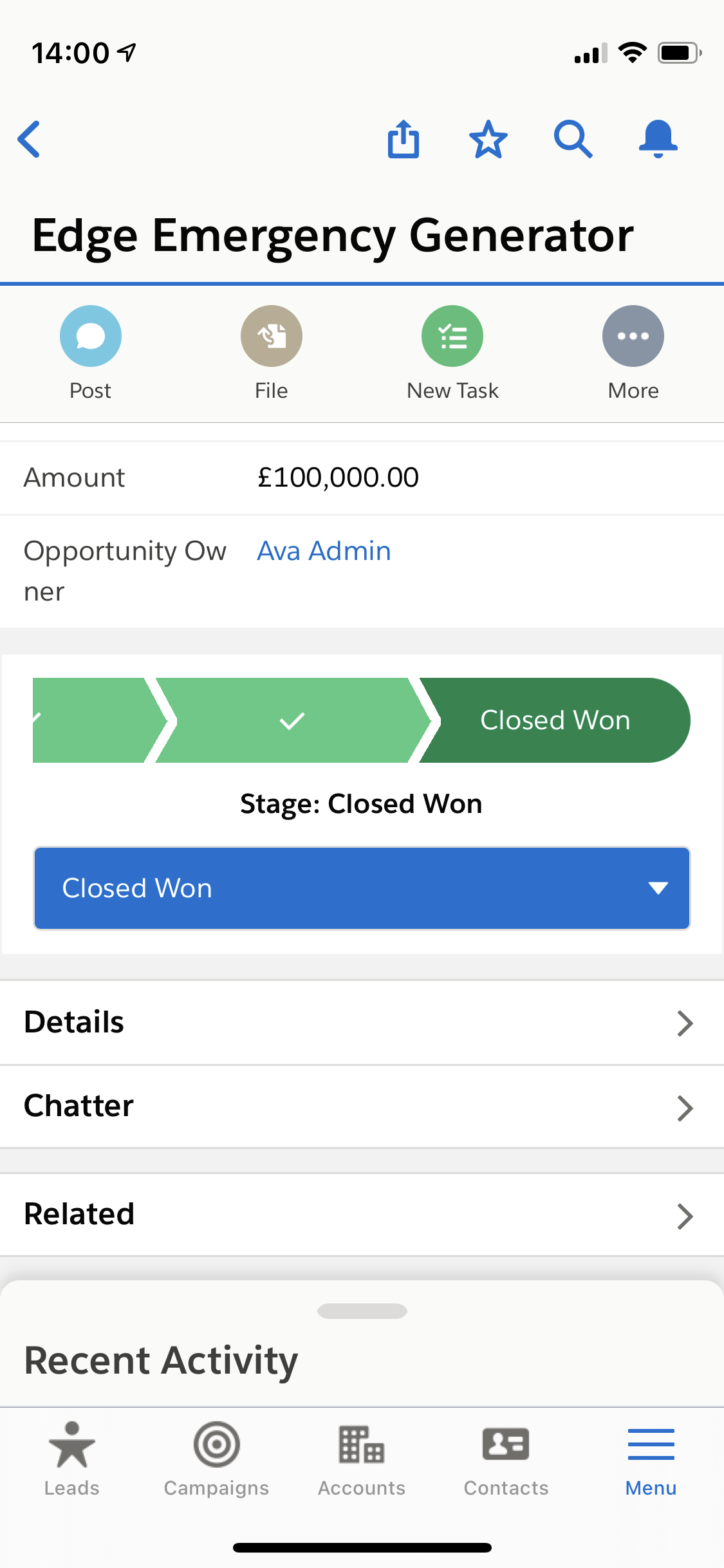
Users can access both standard and custom objects in the mobile app and the record page layout has a similar look and feel to the desktop. At the top of the screen will be features such as the highlights panel and path (if applicable). Underneath will be options to navigate to the record details, Chatter and related records.

Salesforce Mobile App Actions
Along the top of the screen, users will be able to select various standard and custom actions such as ‘Log a Call’, ‘Post’ or ‘New Task’.

Salesforce Mobile App Chatter Features
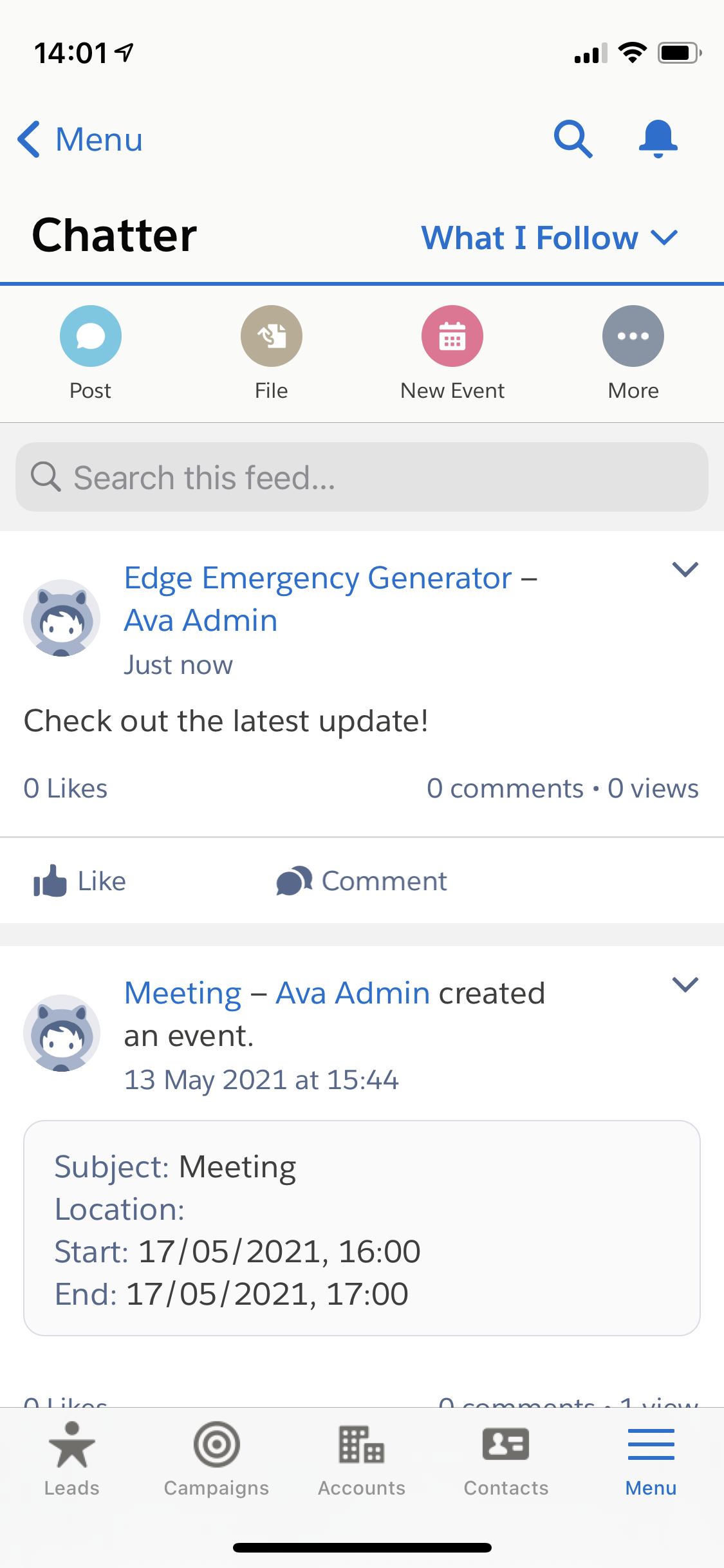
Users can access Chatter within the mobile app including:
- Viewing and posting to groups
- Viewing the Chatter feed
- Sharing Chatter posts
- Viewing the Chatter tab on a record
Salesforce Mobile App Reports and Dashboards
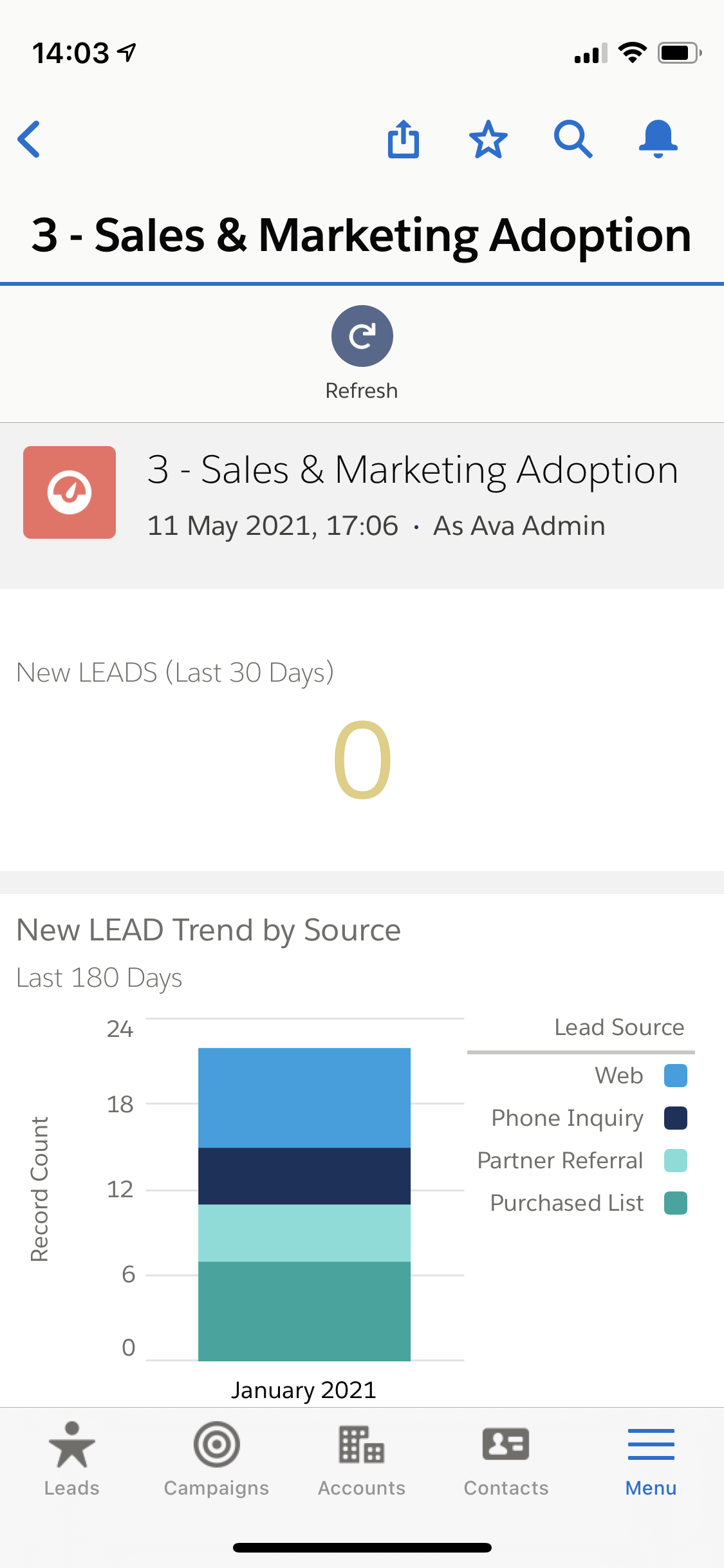
Users can view reports and dashboards on the move!
Salesforce Mobile App Branding
The Salesforce mobile app is branded separately to the rest of your Salesforce org. You can add a brand color, a loading page colour, as well as a landing page logo to brand the mobile experience.

Salesforce Mobile App Offline Access
If you have users that frequently end up in areas with little to no mobile or internet connectivity, then it’s worth enabling certain offline access features.
- Enable caching in Salesforce for Android and iOS – Caching data improves performance as previously accessed items are stored, therefore there is no need to refresh them again.
- Enable offline create, edit, and delete in Salesforce for Android and iOS – Allows users to create, edit and delete records while offline.

There are a few features that are not available in offline mode such as Log a Call, Post and Change Owner. Additionally, Salesforce Communities are not available offline.